Image → 3D draft
Image to STL for your next custom gift.
Upload a clear image of one object and request a 3D draft. Inspect the mesh before downloading STL. This is a creative starting point, not a print-ready engineering model.
200 credits per draft · PNG, JPG or WebP · 2,000,000 bytes max · STL draft
01
Can one image become an STL?
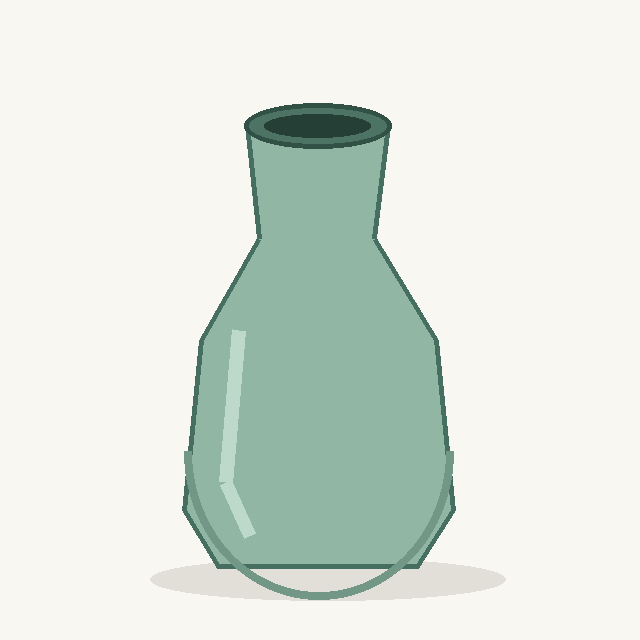
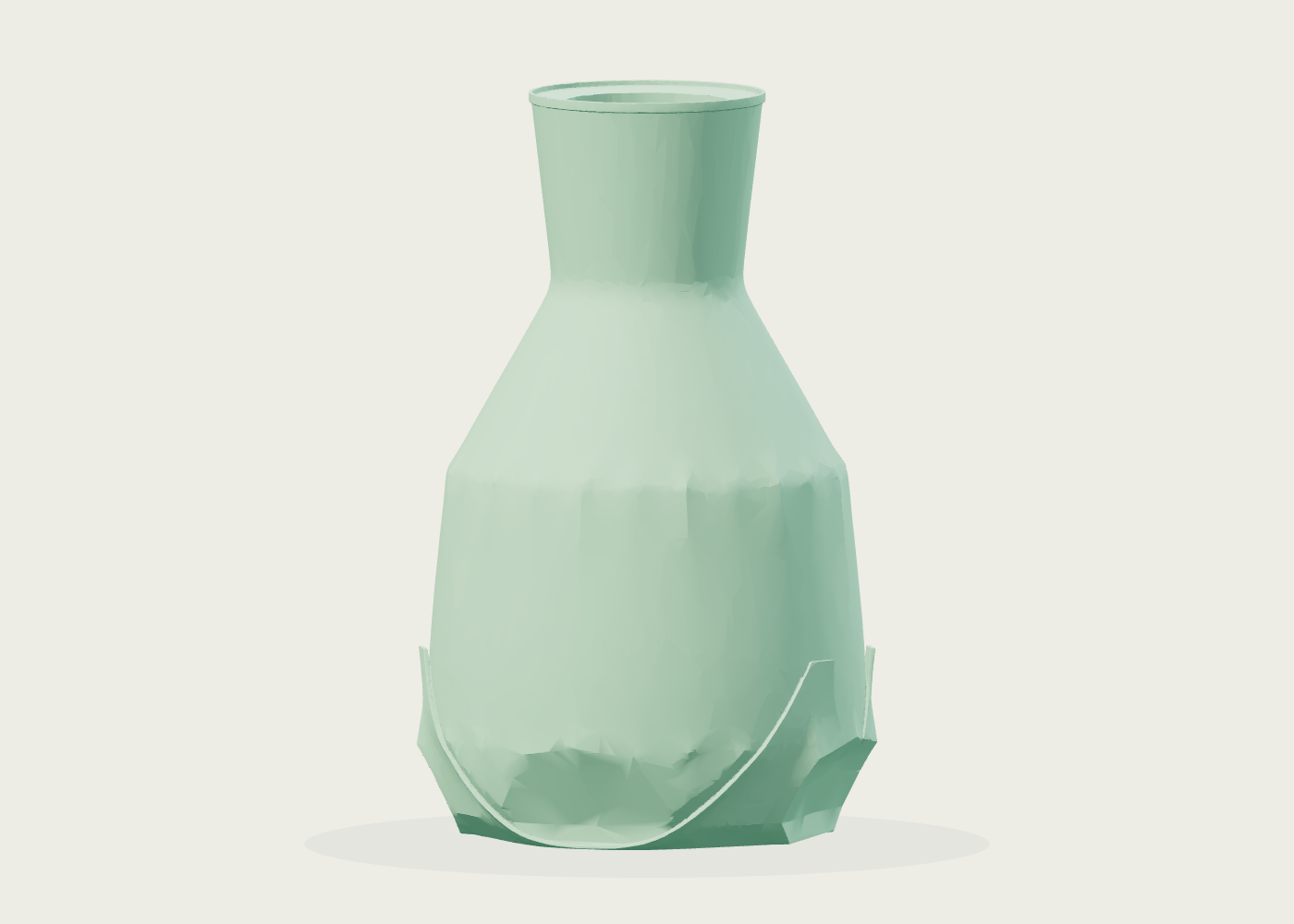
Gift STL Studio accepts one inanimate object image as PNG, JPG, or WebP up to 2,000,000 bytes and generates a draft mesh for inspection and STL download. A request costs 200 credits; new accounts receive zero free credits. Hidden sides are inferred from the single view, so shape and detail can differ from the object you imagined. The vase shown below is one saved result from a self-drawn illustration, not a printed product.
FROM SKETCH TO 3D DRAFT
One vase sketch, one saved mesh
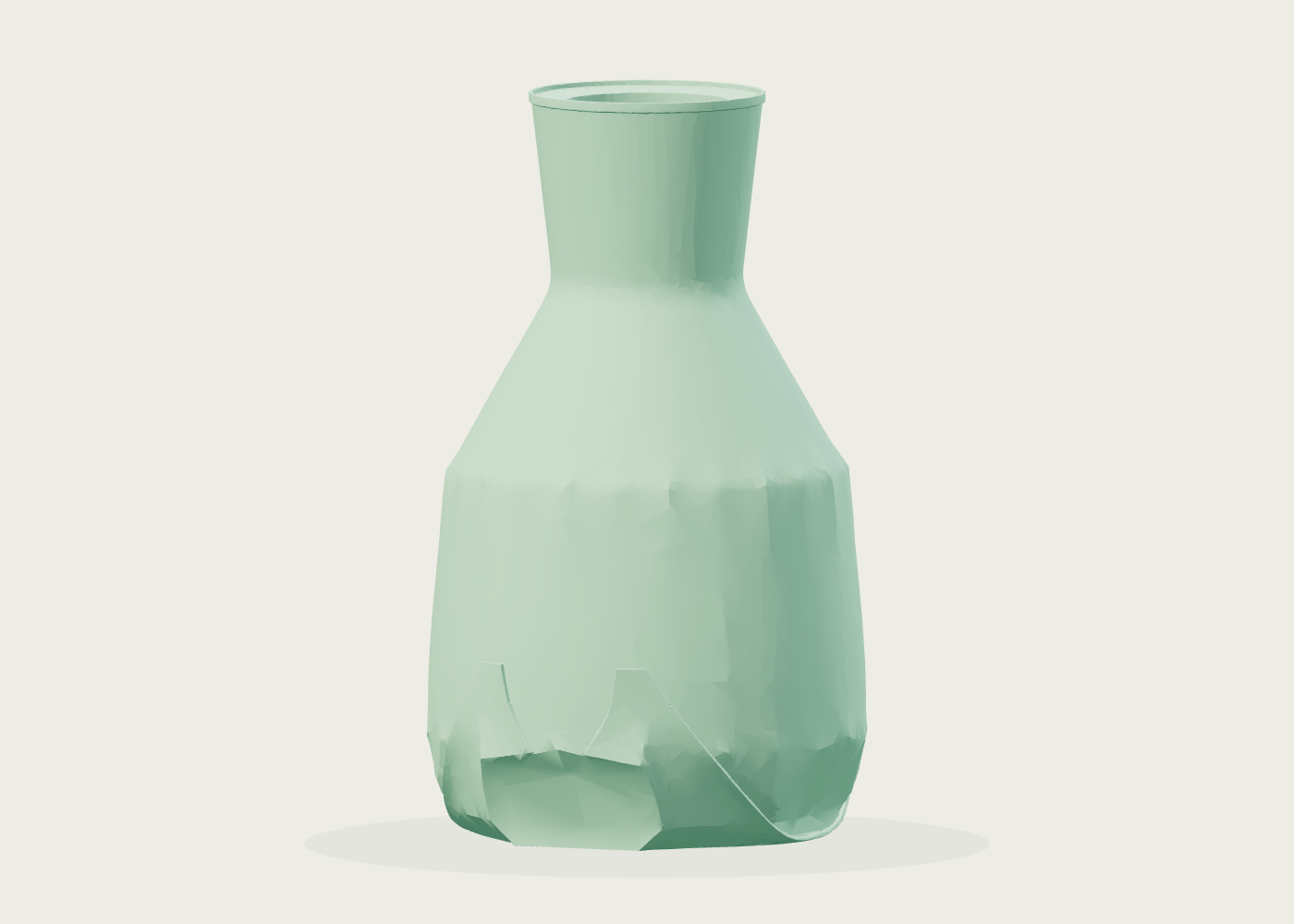
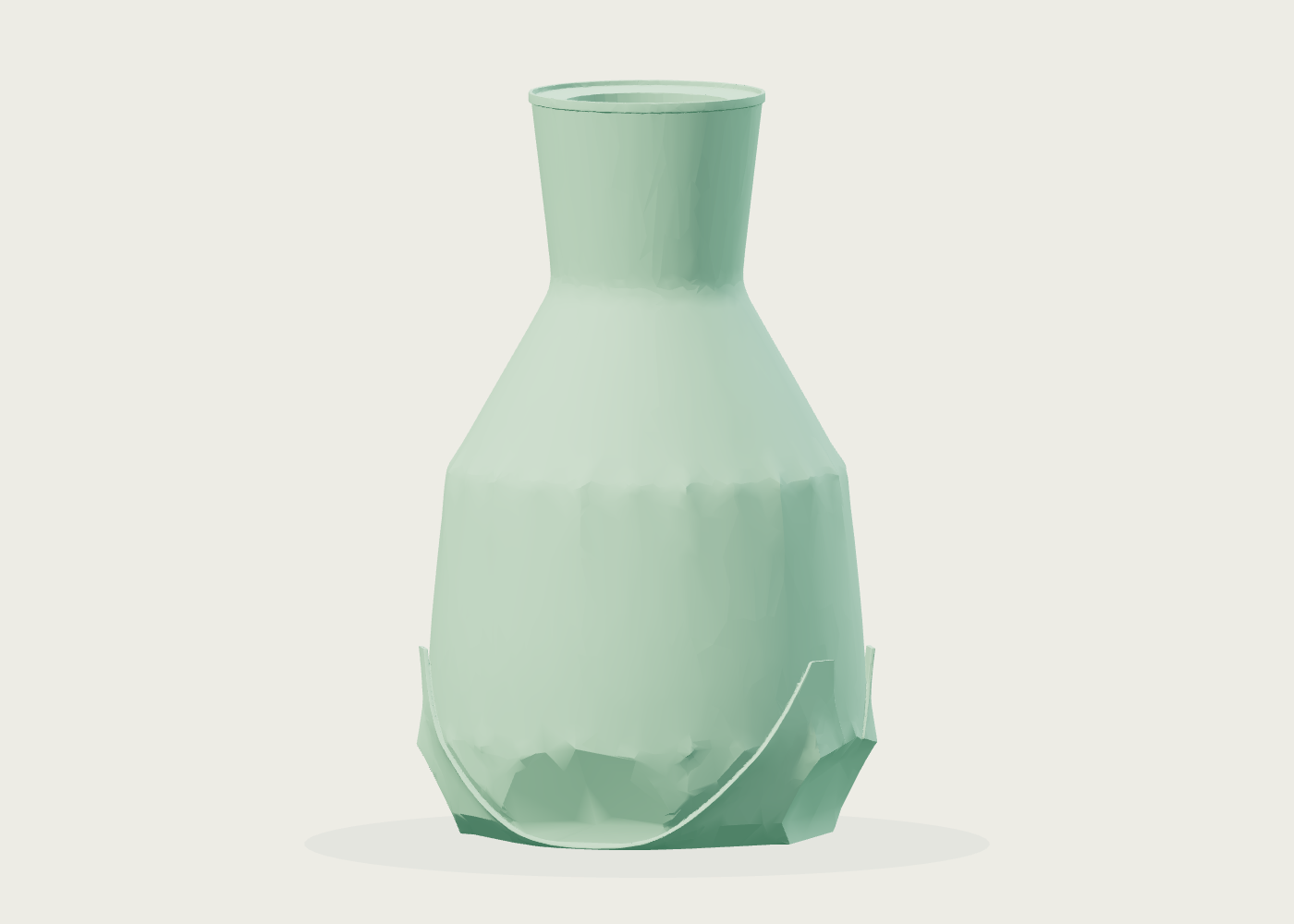
The source here is a self-drawn vase illustration. These images show the saved mesh and two views of that same result. Its shape still needs inspection before any physical use.
02
Choose the guide for your next step
Preparing a photo or illustration? Read the image-to-STL input guide for supported files, source rights, and the difference between the STL and optional GLB downloads.
Thinking about a physical object? Use the STL print checklist to inspect geometry, scale, walls, and a slicer preview before any print attempt.
03
From image to draft mesh
Choose one object image
Use a clear JPG, PNG, or WebP image. A single object against a plain background gives the model less to guess about.
Check availability and cost
Sign in, confirm that you have rights to use the image, and read the current credit quote before submission.
Inspect the mesh
Rotate the actual generated STL preview. Look for missing surfaces, distorted edges, and unwanted background geometry.
Download and refine
Download STL for further modeling or slicing. Verify scale and wall thickness before printing.
04
Built for first drafts
Private workbench
Your job history and downloads are attached to your account.
Actual mesh preview
The workbench previews the generated STL file rather than an illustration of the intended result.
Honest limitations
A single photo cannot show hidden surfaces. Inspect and repair the geometry for your use case.
05
Common questions
Is the STL ready for 3D printing?
Treat it as a draft. Check geometry, scale, manifoldness, wall thickness, and stability in modeling or slicing software first.
Can I upload a person or someone else’s design?
No. Use this workflow for one inanimate object that you made or have permission to use. Do not upload portraits, images of people, or protected designs you lack rights to use.
Will the GLB always be available?
No. STL is the primary download; a GLB download appears only when that optional provider file was saved for the job.
What does a model cost?
A draft costs 200 credits. New accounts start with zero free credits. The workbench checks current availability and your balance before submission; see credit packs.
Start with one image
Open the private workbench to preview your upload and check the current quote.